
Packages
Build automations with 54 source packages: 494 actions and 45 conditions. Choose by task below; each package guide gives every field and an example.
Choose a package
A package groups steps for one data type, application or connection. Actions do work, such as reading a file. Conditions return true or false, such as whether a file exists.
- Find the package in Package guides.
- Read its Prerequisites: some packages need Windows, installed applications, extensions, connections or sessions.
- Find the action or condition by its editor label, technical identifier, inputs, outputs and example.
- Check the room's package version. Availability depends on room packages, versions and device software; see Versions and older entries.
Examples are illustrative unless a guide identifies a source test that proves the result.
Package guides
Each guide covers every action and condition in its source version. Counts include hidden actions retained for stored steps. For commands missing from the editor, see Versions and older entries.
Data and calculations
| Package | Source version | Actions | Conditions | Use it for |
|---|---|---|---|---|
| Base64 | 2.17.1 | 5 | 0 | Encode and decode text or files. |
| Boolean | 2.17.1 | 6 | 1 | Assign, compare, invert and convert Boolean values. |
| Data Table | 2.13.2 | 33 | 4 | Create, sort, reshape and combine tables. |
| Date and time | 2.17.1 | 20 | 1 | Read, calculate and format dates and times. |
| Dictionary | 2.17.1 | 10 | 2 | Work with named keys and values. |
| JSON | 2.17.1 | 11 | 0 | Read and change JSON documents. |
| List | 2.17.1 | 20 | 1 | Create and change ordered collections. |
| Number | 2.17.1 | 11 | 1 | Calculate, round and convert numbers. |
| Record | 2.17.1 | 6 | 3 | Work with a row and its typed columns. |
| Regex | 2.17.1 | 5 | 1 | Find and replace text with regular expressions. |
| String | 2.17.1 | 33 | 1 | Clean, split, compare and convert text. |
| XML | 2.17.1 | 10 | 0 | Read and change XML documents. |
Files and documents
| Package | Source version | Actions | Conditions | Use it for |
|---|---|---|---|---|
| CSV/TXT | 2.17.1 | 3 | 0 | Open, read and close a delimited data source. |
| Excel | 2.17.1 | 59 | 0 | Read and change spreadsheets. |
| File | 2.14.0 | 19 | 8 | Copy, rename, inspect, print and remove files. |
| Folder | 2.14.0 | 12 | 3 | Create, copy, rename, archive and remove folders. |
2.17.1 | 8 | 0 | Read, split and combine PDF files. | |
| PGP | 2.17.1 | 5 | 0 | Encrypt, decrypt, sign and verify files. |
| PowerPoint | 2.17.1 | 14 | 0 | Create and change presentations. |
| Text file | 2.14.0 | 2 | 0 | Read text and named values from a file. |
| Word | 2.17.1 | 13 | 0 | Read and change Word documents. |
Desktop and browser
| Package | Source version | Actions | Conditions | Use it for |
|---|---|---|---|---|
| Application | 2.17.1 | 1 | 2 | Open an application and test whether it is running. |
| Browser | 3.2.0 | 9 | 0 | Open and control browser windows or tabs. |
| Capture and AI repair (Clio) | 2.21.2 | 8 | 1 | Capture elements and use AI-assisted steps. |
| Clipboard | 2.17.1 | 3 | 0 | Read and write the Windows clipboard. |
| Image recognition | 2.17.1 | 2 | 8 | Find and test images on the screen. |
| Keystrokes | 2.16.2 | 1 | 0 | Send keyboard input. |
| Mouse | 2.17.1 | 3 | 0 | Move, click and scroll with the pointer. |
| OCR | 2.18.0 | 4 | 0 | Read text from images or screen areas. |
| Screen | 2.17.1 | 3 | 0 | Capture images of the screen. |
| Window | 2.15.0 | 11 | 4 | Find and control application windows. |
Services and connections
| Package | Source version | Actions | Conditions | Use it for |
|---|---|---|---|---|
| Active Directory | 2.17.1 | 10 | 0 | Connect to a directory and manage its entries. |
| Database | 2.17.1 | 11 | 0 | Open a database session and run SQL. |
| DLL | 2.17.1 | 3 | 0 | Call code from a supported library. |
| FTP | 2.14.1 | 12 | 0 | Transfer and manage remote files. |
| Ping | 2.17.1 | 0 | 2 | Test whether a host responds to ICMP echo. |
| REST | 3.0.7 | 12 | 0 | Call HTTP APIs and read their responses. |
| SAP | 2.17.1 | 26 | 0 | Work with SAP GUI sessions and controls. |
| Service | 2.17.1 | 5 | 2 | Inspect and control Windows services. |
| SNMP | 2.17.1 | 3 | 0 | Read, change and walk SNMP values. |
| SOAP | 2.16.2 | 1 | 0 | Send a SOAP request. |
| Terminal emulator | 2.14.1 | 5 | 0 | Connect to a terminal and exchange text. |
Interaction and output
| Package | Source version | Actions | Conditions | Use it for |
|---|---|---|---|---|
2.17.1 | 15 | 0 | Connect to mail services and work with messages. | |
| Log to file | 2.17.1 | 3 | 0 | Create and append file logs. |
| Message box | 2.14.3 | 1 | 0 | Show a message on the device. |
| Play sound | 2.17.1 | 2 | 0 | Play a sound on the device. |
| Printer | 2.17.1 | 3 | 0 | Get or set the default printer, or remove a printer. |
| Prompt | 2.13.4 | 4 | 0 | Ask a person for a value or selection. |
| Screen recorder | 2.17.1 | 2 | 0 | Start and stop a screen recording. |
Process and runtime
| Package | Source version | Actions | Conditions | Use it for |
|---|---|---|---|---|
| Core | 2.17.1 | 6 | 0 | Read the retained basic application actions. |
| Demo | 2.17.1 | 4 | 0 | Use the sample actions to learn package behavior. |
| Process Framework | 2.17.1 | 8 | 0 | Read configuration, clean up and write session logs. |
| Queue | 2.8.2 | 3 | 0 | Add queue items, get work and report results. |
| System | 2.17.1 | 5 | 0 | Read system values or control the device. |
Add a step
- Open a Task draft from Automations.
- Choose Add step, or
/in the default keymap. - Choose Actions to show only actions. Expand a package when search is empty, or type a package and action name, such as
String Uppercase. - Select the action and press Enter, or click it. Double-click its outline row to open Properties.
- Fill Action, then Output if the action returns values.
A Process offers coordination steps. Put application work in a Task and call it from the Process. For a missing action, check the automation kind, room packages and package version.
The editor's ⋯ → Packages lists versions declared by the draft for uploaded packages it already uses. Choose another version offered by the room, then save. Built-in packages come with the agent and are absent here. A new draft adopts the room's default version of an uploaded package when it first saves a step that uses it.
Fill the inputs
Actions and conditions read inputs. Tables give the exact identifier (sourceString), then the editor label: find fields by label; distinguish similar labels by identifier.
Literal values and variable references
Literals are typed values: Invoice 1042, 12.5, true. Omit quotes around ordinary text: typed quotes become String content.
References ($invoiceCode$) read variables. Select one or type $ in text fields for suggestions. Use editor-created names; room naming rules can change sample names.
Whole-field references keep type: Number fields need Number variables, not digit Strings. The text template Invoice $invoiceCode$ needs a String invoiceCode. Convert Numbers explicitly for text (Length: $codeLength|string$). Convert numeric Strings to Number with $amountText|number$ or the package's conversion action. Conversion fails if the value does not fit.
Read members ($record.Invoice$), items ($items[0]$) and Table rows/columns ($table[0].Invoice$ or $table[0][1]$). Reference indices start at 0; action index bases can differ (see their guides). $$ gives a literal dollar sign.
Common input types
| Type | What to supply |
|---|---|
String | Literal text or a String reference; File paths and Window references where the package permits them. |
Number | A number with a decimal point (12.5) or a Number reference. No thousands separator. |
Boolean | true, false or a Boolean reference for value fields. See checkboxes below. |
Datetime | A Datetime reference or a date/time in the action's required format. Explicit ISO 8601 values such as 2026-10-15 include an offset. |
List, Dictionary, Record, Table | Select a variable of that type, populated with package actions or a valid default. Record and Table require a schema and typed values, not plain JSON objects or arrays. |
Credential | The Credential variable prepared for the connection; follow the package's sign-in requirements. |
File | A File variable or accepted path to a file on the device that runs the automation. |
Window | A Window variable, captured window or title, as the action permits. |
Var | Select the receiving variable or create it with +. This names a destination, without reading its current value. |
Any | A value whose type the action determines; check its limits before use as another typed input. |
Use typed variables for structured data; do not paste JSON into a variable picker. Fields that explicitly accept JSON text or tables of rows specify the format in their guide.
Checkboxes and Boolean values
Select a checkbox (Trim leading spaces) to enable; clear to disable. Boolean value fields offer true, false and Boolean variables, such as $isReady$ in a comparison. Use the editor's control.
Required fields, defaults and conditional fields
A dot marks required fields. Complete all visible ones before Publish. Other fields can still have runtime constraints, such as an existing path or a positive number; check their guide.
Guides give runtime defaults for omitted fields, including defaults set by the package. Blank does not always mean empty String, zero or false. Set explicit values when the workflow depends on them.
Guides list each conditional field's controlling choice beside it. For example, REST shows Username and Password for Authentication = Basic, and Token for Bearer token. These rules control editor visibility: supplied values still bind when present in a saved step, even if hidden.
Save an output
In Properties → Output, assign returned text, Number or Table values needed later to matching variables: String to String, Table to Table. + beside the field creates a variable of the expected type.
The picker reference ($invoiceCode$) selects where to write; the next action's input reads it. Unassigned outputs are unavailable later. Actions without outputs can still change files, send requests or click elements.
To return automation variables, edit them in Variables, select Use as output, then inspect them on the run page. This differs from action output assignment.
Use a condition
Add If or Else if, or choose a loop that uses a condition. In Properties, open the condition selector, choose the package and condition, and fill its inputs. Conditions are selected here, not as ordinary action steps.
For Number condition, set Source value = $codeLength$, Operator = Equals to (=) and Target value = 12. The result is true only when codeLength is the Number 12, false for every other number. If runs its child steps only when true.
Conditions return a Boolean to the evaluating step, without output-variable binding. Combine questions in the condition editor for multiple tests.
Paths and sessions
File paths are read on the executing device with the run account's permissions, not the computer where you view the room. Relative paths such as samples/invoice.txt use the run's working folder when the package follows that rule. Some fields allow absolute paths; others restrict paths to a working folder and reject parent segments (..). Follow each field's package guide.
A session name (reporting) identifies an open resource during the run, not a server address, username or password. First Open or Connect, reuse that name in later actions, then Close or Disconnect when provided. The name alone opens no connection. Session defaults and close behavior vary by package.
Example: clean an invoice code
This String example needs no file, application window or connection. Its values follow the source implementation; this illustrates a workflow, not a live run.
Use this literal, with two spaces at each end:
invoice-1042 Create a Task draft. Add these actions and bind their results in Output:
| Action | Source string (sourceString) | Output binding |
|---|---|---|
String → Strip whitespace (string) | The literal above. | Assign trimmed text to (result) → new String variable cleaned. |
String → Uppercase (string) | $cleaned$ | Assign the output to variable (result) → String variable invoice. |
String → Length (string) | $invoice | Assign the output to variable (result) → Number variable code. |
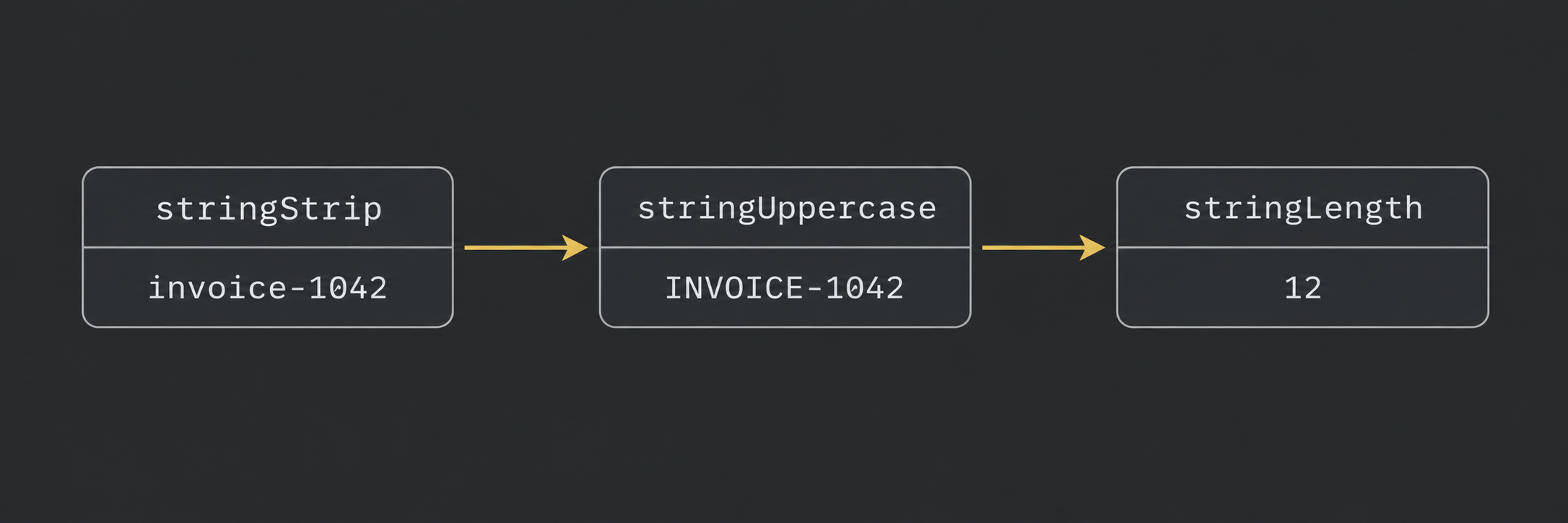
invoice-1042. Uppercase gives INVOICE-1042. Length gives 12.In Variables, select Use as output for invoiceCode and codeLength. Use the resulting names in references if the room applies a naming rule.
Select an available device beside Run before choosing Run (or Save and run if shown): the button can start immediately on that device. Open the completed run and inspect its results.
Expected: cleaned = invoice-1042, invoiceCode = INVOICE-1042, codeLength = 12. A String destination for codeLength has the wrong type. Unassigned outputs cannot feed the next step.
Versions and older entries
The source versions above were reviewed on 15 October 2026. Packages can be unpublished, absent or at another version in a room. Check the installed version before copying example fields. Do not change an automation's package version merely to match this reference; review that version's behavior and test the draft first.
Hidden actions let stored steps load and show their properties. Guides mark them and state whether they run (some deliberately fail). They are absent from selection for new steps even in exact-name searches, including Send keys in Core. Use the guide's current package alternative when provided.
Older command identifiers can be aliases that keep stored steps readable, without adding to command counts. Guides use current technical identifiers; totals include retained hidden actions.
For initial room setup and your first run, see Getting started; for release information, see Release notes.