
Excel package guide
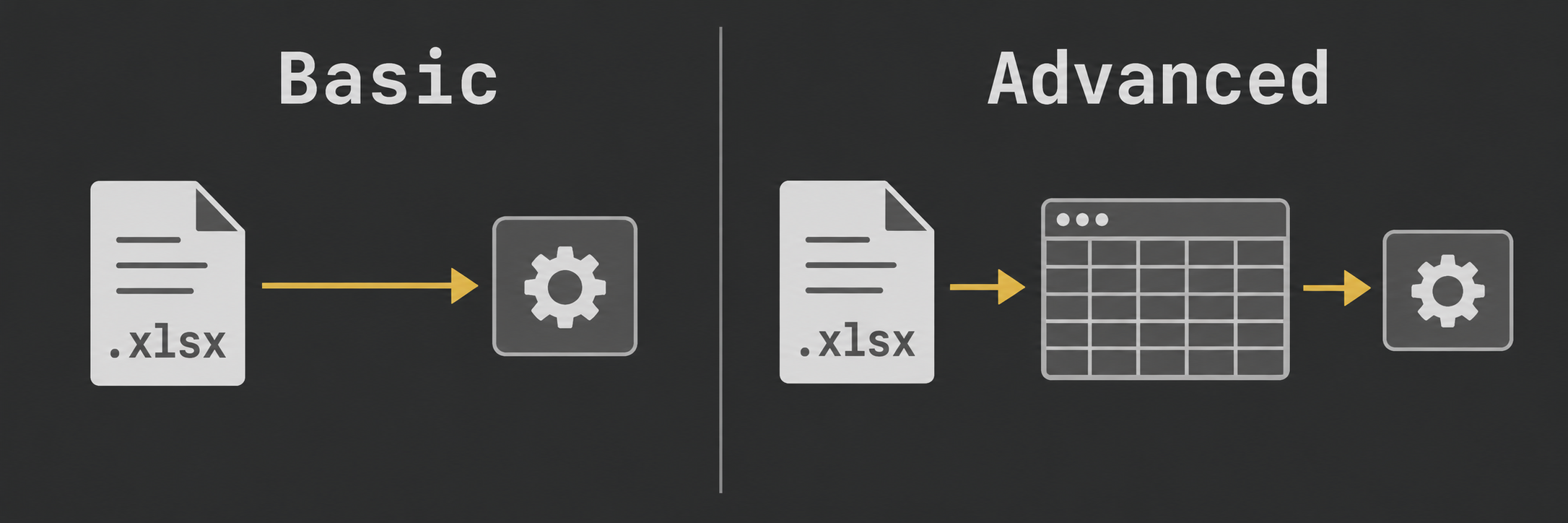
Read and change workbooks through a named session. Use Basic for direct .xlsx file work, or Advanced for Microsoft Excel.
Packages. Version 2.17.1. Installed versions can differ. Examples are illustrative and not tested.
Prerequisites
- The automation needs file access to the sample folder. Relative paths start from the Run working folder.
- Basic needs no Office installation. Use
.xlsxfiles. Basic cannot open password-protected workbooks. It opens a file only up to 64 MiB, 256 MiB unpacked and 10,000 parts, and rejects a part above 64 MiB or with a compression ratio above 1000. - Advanced needs Windows and Microsoft Excel installed for the account that runs the automation. Each session starts its own visible Excel with alerts turned off. Open accepts existing local files up to 64 MiB. Excel must support the file format and any sign-in that the file needs.
- Use a new, non-empty session name, such as
report. Every example usessession=report. Close a session before you use its name again. Open withEDITto make changes, then save and close. Save as can write a copy, and the session then uses the new path. - To type a
$in an address or formula, type$$:$$B$$2means$B$2, and=$$B$$2*2means the formula=$B$2*2. A String variable such as$addr$passes its address or formula as it is. - Addresses use A1 notation. Worksheet, row and column positions start at 1. Table variable row indexes start at 0. On a blank worksheet the used area is
A1. In Advanced, the used area can include empty cells that have formatting. - A Credential field takes a Credential variable, for example
$workbookPassword$. The action reads only its password, not its username. Create the variable before the step. - Each choice shows its value, then its English editor label in brackets. Boolean values are
trueandfalse. A field that the editor hides still has an effect if you set it. An empty field uses its default.
For the shared example, prepare samples/report.xlsx with worksheet Data: A1=Name, B1=Amount, A2=Ana, B2=12, A3=Ben, B3=7. Open it with containsHeader=true, isSpecificSheet=true and sheetName=Data.
For table actions, create an Excel table named Sales over Data!A1:B3 in a test copy of the workbook before the Run. A Table variable is different: fill it with Get multiple cells or Get worksheet as data table, then use it as $rows$.
Shared fields
Fields with a link follow these rules. A field is optional unless it says Required. Type/default shows the type, then the default after ;. An empty Credential has an empty username and password. Bind each output to a variable of the listed type.
| Rule (fields) | Meaning |
|---|---|
Sheet selection (sheet) | BYNAME selects the worksheet by its exact name. BYINDEX selects it by position, starting at 1. In an Advanced session opened with exclude, the index counts only visible sheets, unless the action says otherwise. Choices: BYINDEX (Index), BYNAME (Name). |
Source workbook (from, file) | Path of an existing workbook, for example samples/. Relative paths start from the working folder. The action opens the source read-only and closes it without saving. |
Mode (mode) | Basic reads and writes .xlsx files without Microsoft Excel. Advanced controls Microsoft Excel on Windows. Choose the mode when you open or create the session. Choices: Basic (Basic (the file itself, no Excel needed)), Advanced (Advanced (Microsoft Excel)). |
Overwrite (is) | true lets the action replace the target file. false fails if the target exists. |
Apply sensitivity (set) | true applies the Microsoft Purview label after the workbook opens or is created. This needs Microsoft 365 Excel with label support. |
Sensitivity ID (sensitivity, label) | A Credential variable whose password holds the Purview label ID. The username is ignored. Get the ID from your label administrator. |
Sensitivity errors (continue_) | false: the step fails if the label cannot be set. true: the step continues, also for an empty or wrong label ID, but the label may not be set. |
Cell address (cell, cell) | One A1 address, such as B2. For $B$2, type $$B$$2 or use a String variable that holds $B$2. Empty uses the active cell, except in Go to cell, which needs an address. |
Excel table name (table) | Name of an existing Excel table, for example Sales. This is a table in the workbook, not a Table variable. The search covers all worksheets and ignores case. |
Column header (column) | The header text, for example Amount. The action looks in the first row of the selected range and ignores case. |
Column position (column) | Column position in the selected table or range, starting at 1. 1 is its first column, which need not be worksheet column A. |
From / Till (from, till) | The two corners of the area, both included. BEGINNING is the top-left used cell, END the bottom-right used cell, ACTIVECELL the active cell, and SPECIFICCELL the address you give. The order of the corners does not matter. Choices: BEGINNING (Beginning), END (End), ACTIVECELL (Active cell), SPECIFICCELL (Specific cell). |
Search text (find) | Literal text to find, not empty, for example cat. It is not a regular expression. The search reads the stored cell values. |
Scan order (search) | BYROWS scans left to right, then down. BYCOLUMNS scans top to bottom, then right. Choices: BYROWS (By rows), BYCOLUMNS (By columns). |
Search start (start) | true starts at the active cell. false starts at cell; an empty address also uses the active cell. The search includes the start cell. |
Read option (read) | READ_ reads the displayed text in Advanced. READ_ reads the stored value, such as 12.5. Basic returns the stored value for both choices. An empty cell returns an empty String. Choices: READ_ (Read visible text in cell), READ_ (Read cell value). |
Worksheet selection (sheet) | Active uses the active sheet. Specific uses from; an empty name also uses the active sheet. Choices: Active (Active worksheet), Specific (Specific worksheet). |
Row span (rows) | Required. A row or row span, for example 3 or 2:5. All cells in those rows are affected. |
Column span (cols) | Required. A column letter or span, for example B or B:D. All cells in those columns are affected. |
Password (password and the other Credential password fields) | A Credential variable with the password, for example $workbook. Only its password is used. Empty means no password. |
Existing sheet index (sheet) | A whole number from 1 that identifies an existing worksheet. |
Existing sheet name (sheet) | The name of an existing worksheet, for example Data. |
Active cell (active, cell) | true uses the active cell. false uses the cell address; an empty address also uses the active cell. |
Common inputs
These inputs mean the same in every action that names them. Each action says which ones it uses.
| ID | Editor field | Type/default | Requirement/use |
|---|---|---|---|
session | Session name | String; empty | Use the same session name in later steps, such as report. It identifies the workbook and holds no password. |
active | Use the active cell | Boolean; false | Active cell. |
cell | Cell address | String; empty | Cell address. When active. |
cell | Cell address | String; empty | Cell address. When active. |
read | Read option | Read; READ_ | Read option. |
sheet | Sheet index | Number; 1 | Existing sheet index. When sheet. |
sheet | Sheet name | String; empty | Existing sheet name. When sheet. |
Actions
Each action works in Basic and Advanced, unless it says Advanced required.
Switch to sheet (excelActivateSheet)
Activate a worksheet for cell operations. Basic also resets the active cell to A1.
Inputs
| ID | Editor field | Type/default | Requirement/use |
|---|---|---|---|
sheet | Activate sheet by | Sheet; BYNAME | Sheet selection. |
Also uses session, sheetIndex and sheetName from the common inputs.
Outputs
None.
Example
Open a workbook with worksheets Data and Archive. Set sheetName=Archive.
Expected result
Get current worksheet name returns Archive. A missing name or out-of-range index fails the step.
Append workbook (excelAppendWorkbook)
Append copies of all source worksheets. The source stays unchanged.
Advanced required.
Inputs
| ID | Editor field | Type/default | Requirement/use |
|---|---|---|---|
from | Append from workbook | String; empty | Required. Source workbook. |
is | Password is required | Boolean; false | Set true only for a workbook that needs an opening password. Basic Open rejects this option. |
secure | To open | Credential; empty | Password to open the workbook. When is. |
Also uses session from the common inputs.
Outputs
None.
Example
Prepare samples/source.xlsx with sheets January and February. Set fromWorkBookPath=samples/source.xlsx.
Expected result
Copies of both source sheets follow the existing sheets. Excel may change copied names if they conflict. An unreadable file or incorrect password fails the step. Save the destination to keep the copies.
Append worksheet (excelAppendWorksheet)
Append a source worksheet selected by name or position.
Advanced required.
Inputs
| ID | Editor field | Type/default | Requirement/use |
|---|---|---|---|
file | Append from workbook | String; empty | Required. Source workbook. |
is | Password is required | Boolean; false | Set true only for a workbook that needs an opening password. Basic Open rejects this option. |
password | To open | Credential; empty | Password to open the workbook. When is. |
sheet | Worksheet to be appended by | Sheet; BYNAME | Sheet selection. |
sheet | Worksheet name | String; empty | Existing sheet name. When sheet. |
sheet | Worksheet index | Number; 1 | The source worksheet position from 1. All source worksheets count, including hidden sheets. When sheet. |
Also uses session from the common inputs.
Outputs
None.
Example
Prepare samples/source.xlsx with worksheet January. Set filePath=samples/source.xlsx, sheetName=January.
Expected result
A copy of January becomes the final worksheet. Source indexes count all source worksheets, even when the destination session excludes hidden sheets. A missing sheet fails.
Close (excelCloseSpreadsheet)
Close the session, releasing its file and Advanced Excel process. Choose whether to save first.
Inputs
| ID | Editor field | Type/default | Requirement/use |
|---|---|---|---|
is | Save changes when closing file | Boolean; false | true saves before closing. false closes without saving and discards pending changes. |
is | Report an error when the file is read-only | Boolean; false | Advanced mode: true fails when save was requested on a read-only session; false skips saving and closes. Basic mode rejects closing with save on a read-only session for either value. When is. |
Also uses session from the common inputs.
Outputs
None.
Example
After changing B2 in the test workbook, set isSave=true.
Expected result
The workbook is saved and the session is removed. Later actions on report fail until it is opened again. With isSave=false, unsaved changes are discarded. If saving raises an error, closure is not reached.
Convert excel to PDF (excelConvertToPDF)
Export a workbook or selected worksheet to a PDF. Excel supplies the page layout and print settings.
Advanced required.
Inputs
| ID | Editor field | Type/default | Requirement/use |
|---|---|---|---|
convert | Select sheet(s) to be converted | Convert; ENTIRE_ | ENTIRE_ exports the workbook; ACTIVE_ the active worksheet; SPECIFIC_ the named worksheet. Choices: ENTIRE_ (Entire excel file), ACTIVE_ (Active sheet), SPECIFIC_ (Specific sheet). |
sheet | Sheet name | String; empty | Existing sheet name. When convert. |
file | Select PDF storage location | String; empty | Required. The destination folder, for example samples/. Relative paths use the automation working folder. Missing folders are created. |
pdf | Specify PDF file name | String; empty | Required. A non-empty file name, for example report or report.pdf. The action adds .pdf when needed. |
overwrite | If a PDF with the same name already exists | Overwrite; OVERWRITE | OVERWRITE replaces an existing target PDF. DONT_ uses the first available numbered name, starting with (2). Choices: OVERWRITE (Overwrite existing file), DONT_ (Don't overwrite (save as Filename (2))). |
Also uses session from the common inputs.
Outputs
| ID | Type | Meaning/binding |
|---|---|---|
result | String | The full PDF path actually written. Editor: Assign the PDF path to. |
Example
Use sheet Data. Set convertSheetType=SPECIFIC_SHEET, sheetName=Data, fileStorageLocation=samples/export, pdfFileName=report, overwriteFile=DONT_OVERWRITE. Bind result to pdfPath.
Expected result
Excel creates report.pdf in the resolved export folder. If it exists, the first free name is report (2).pdf, then (3), and so on. Export or filesystem errors fail the step.
Create workbook (excelCreateSpreadsheet)
Create and save a report workbook, keeping it open as a named session.
Inputs
| ID | Editor field | Type/default | Requirement/use |
|---|---|---|---|
mode | Mode | Excel; Basic | Mode. |
file | File path | String; empty | Required. The new workbook path, for example samples/. Basic uses .xlsx; Advanced chooses the Excel file format from the extension. Missing parent folders are created. |
is | Overwrite existing file | Boolean; false | Overwrite. |
sheet | Sheet name | String; empty | The first worksheet name, for example Data. Empty creates the default first sheet (Sheet1 in Basic mode). |
password | Password to open | Credential; empty | Password to open the workbook. When mode=. |
password | Password to edit | Credential; empty | Password to change the workbook. When mode=. |
set | Set sensitivity label | Boolean; false | Apply sensitivity. When mode=. |
sensitivity | Sensitivity label | Credential; empty | Sensitivity ID. When mode= and set. |
continue_ | Continue on error | Boolean; false | Sensitivity errors. When mode= and set. |
Also uses session from the common inputs.
Outputs
| ID | Type | Meaning/binding |
|---|---|---|
session | String | String equal to the supplied session name. Bind it if later steps need the name through a variable. Editor: Create Excel session. |
Example
Set filePath=samples/report.xlsx, sheetName=Data. Bind sessionName to openedSession.
Expected result
A saved workbook with worksheet Data is created. $openedSession$ is report. The action creates missing parent folders. Basic rejects non-empty opening or editing passwords; use Advanced for password protection. An existing file fails unless overwrite is enabled; enabling it replaces that file.
Create worksheet (excelCreateWorksheet)
Add and activate a worksheet by name or position.
Advanced required.
Inputs
| ID | Editor field | Type/default | Requirement/use |
|---|---|---|---|
sheet | Create sheet by | Sheet; BYNAME | Sheet selection. |
sheet | Sheet index | Number; 1 | The position, starting at 1, of an existing worksheet to insert before. A value outside the range adds the sheet at the end. This index counts all worksheets. When sheet. |
sheet | Sheet name | String; empty | The new, unique Excel worksheet name. It is required with BYNAME; it does not name an existing sheet. When sheet. |
Also uses session from the common inputs.
Outputs
None.
Example
Set sheetName=Archive in a workbook with no Archive sheet.
Expected result
A worksheet named Archive is added after the final worksheet. A duplicate or invalid worksheet name fails. With a valid existing index, the new unnamed sheet is inserted before that index; an index outside the existing range appends it.
Delete cells (excelDeleteCells)
Delete a cell with a shift, or its entire row/column.
Inputs
| ID | Editor field | Type/default | Requirement/use |
|---|---|---|---|
delete | Delete options | Delete; Shift | Shift moves following cells left; Shift moves cells below upward; Entire deletes the full row; Entire deletes the full column. Choices: Shift (Shift cells left), Shift (Shift cells up), Entire (Entire row), Entire (Entire column). |
Also uses session, activeCell and cell from the common inputs.
Outputs
None.
Example
In a test sheet, put a in A1 and b in B1. Set cell=A1.
Expected result
A1 now contains b. The original a is deleted. Whole-row or whole-column choices delete every cell in that row or column. A read-only session rejects the action.
Delete worksheet (excelDeleteSpreadsheet)
Delete a worksheet without confirmation because Excel alerts are disabled.
Advanced required.
Inputs
| ID | Editor field | Type/default | Requirement/use |
|---|---|---|---|
sheet | Delete sheet by | Sheet; BYNAME | Sheet selection. |
Also uses session, sheetIndex and sheetName from the common inputs.
Outputs
None.
Example
Use a test workbook with Data and Temporary. Set sheetName=Temporary.
Expected result
Temporary and its contents are removed. Data remains. Excel rejects deletion that leaves no valid visible worksheet, or deletion blocked by workbook protection.
Delete table column (excelDeleteTableColumn)
Delete a table column and its data, by name or position.
Advanced required.
Inputs
| ID | Editor field | Type/default | Requirement/use |
|---|---|---|---|
table | Table name | String; empty | Required. Excel table name. |
delete | Delete column by | Table; COLUMNNAME | COLUMNNAME finds the table column by its header. COLUMNPOSITION uses its position in the table, starting at 1. Choices: COLUMNNAME (Name), COLUMNPOSITION (Position). |
column | Column name | String; empty | Column header. When delete. |
column | Column position (at) | Number; 1 | The position in the table, starting at 1, for example 2 for its second column. When delete. |
Also uses session from the common inputs.
Outputs
None.
Example
In a test workbook, create table Sales with columns Name, Amount, Temporary. Set tableName=Sales, columnName=Temporary.
Expected result
Sales contains Name and Amount; Temporary and its values are removed. An unknown table or column fails.
Break workbook links (excelDeleteWorkbookLinks)
Break one or all external workbook links, keeping cell values.
Advanced required.
Inputs
| ID | Editor field | Type/default | Requirement/use |
|---|---|---|---|
links | A specific link | Boolean; true | true breaks only a matching link. false breaks every external Excel workbook link. |
specific | Link | String; empty | The full source link returned by Get workbook links, or its file name such as source.xlsx. Matching ignores case. When links. |
Also uses session from the common inputs.
Outputs
| ID | Type | Meaning/binding |
|---|---|---|
result | Number | Count of source links broken, not the number of affected cells. Editor: Assign the output to variable. |
Example
In a test workbook linked to source.xlsx, set specificLink=source.xlsx. Bind result to brokenLinks.
Expected result
With exactly one matching source, brokenLinks is 1. Formulas linked to that source become values. No matching links returns 0; Excel errors still fail the step.
Disable or enable real-time screen update (excelEnableDisableAutoUpdate)
Disable Excel screen redraw during edits; re-enable it afterward.
Advanced required.
Inputs
| ID | Editor field | Type/default | Requirement/use |
|---|---|---|---|
enable | Real-time screen update | Screen; disable | disable sets Excel Screen to false. enable sets it to true. Re-enable it after the edit sequence. Choices: disable (Disable), enable (Enable). |
Also uses session from the common inputs.
Outputs
None.
Example
Run this action. Make the sample edits, then run it again with enableDisableScreenUpdateOption=enable.
Expected result
Excel stops redrawing during the edit sequence and resumes afterward. This changes screen display, not calculation or workbook saving.
Filter (excelFilterTableV2)
Apply AutoFilter to a table or worksheet range, hiding rows that fail the criterion without deleting them.
Advanced required.
Inputs
| ID | Editor field | Type/default | Requirement/use |
|---|---|---|---|
filter | Filter | Filter; Filter | Filter uses the named Excel table. Filter uses a specific range or the used area on the chosen worksheet. Choices: Filter (Table), Filter (Worksheet). |
table | Table name | String; empty | Excel table name. When filter. |
worksheet | Worksheet name | String; empty | A worksheet name, for example Data, or leave empty to use the active sheet. When filter. |
remove | Remove existing filter from the sheet | Boolean; false | true removes the worksheet AutoFilter before applying this filter. false keeps existing filtering. Only the worksheet branch uses this field. When filter. |
cell | Cell range | Cell; All | All uses the used area of the worksheet. Specific uses specific. In both cases the range must include a header row. When filter. Choices: All (All cells), Specific (Specific). |
specific | Range | String; empty | The complete range including headers, for example A1:B20. When filter and cell. |
column | Filter for | Filter; Column | Column finds the header in the first row. Column uses the position in the filtered range, starting at 1. Choices: Column (Column name), Column (Column position). |
column | Column name | String; empty | Column header. When column. |
column | Column position | Number; 1 | Column position. When column. |
filter | Filter by | Filter; Number | Number uses the numeric comparison choice. Text uses the text comparison choice. Excel interprets the resulting criterion. Choices: Number (Number), Text (Text). |
filter | Number filter | Number; equals | When filter. Choices: equals (Equals, =), not (Does not equal, <>), greater (Greater than, >), greater (Greater than or equal to, >=), less (Less than, <), less (Less than or equal to, <=), between (Between, includes both value and value). |
filter | Text filter | Text; equals | equals keeps cells equal to the value and not hides them. The begins, ends, contains and not-contains choices match part of the cell. * and ? in the value work as in Excel. When filter. Choices: equals (Equals), not (Does not equal), begins (Begins with), ends (Ends with), contains (Contains), not (Does not contain). |
value | Value | String; empty | The comparison value as text, for example 10 for a number filter or Ana for a text filter. For Between it is the lower limit, included. |
value | To value | String; empty | The upper limit for between, included, for example 20. Other comparisons do not use it. When filter and filter. |
Also uses session from the common inputs.
Outputs
None.
Example
Create an Excel table Sales over A1:B3 with headers Name, Amount and rows Ana, 12 and Ben, 7. Set tableName=Sales, columnName=Amount, filterBasedOnNumber=greaterThanNumber, value=10.
Expected result
The header and Ana row stay visible. The filter hides the Ben row. With no match, only the header stays visible. A wrong table name, header or range fails. Filters on other columns still apply.
Find (excelFind)
Find literal text in the active worksheet, returning matching A1 addresses. Choose substring or whole-cell matching.
Inputs
| ID | Editor field | Type/default | Requirement/use |
|---|---|---|---|
from | From | Anchor; BEGINNING | From / Till. |
from | From cell address | String; empty | The start A1 address, for example A1. Required here. When from=. |
till | Till | Anchor; END | From / Till. |
till | Till cell address | String; empty | The end A1 address, for example C20. Required here. When till=. |
find | Find | String; empty | Required. Search text. |
search | Search options | Search; BYROWS | Scan order. |
match | Match case | Boolean; false | true requires the same case. false compares without case. |
match | Match entire cell contents | Boolean; false | true requires the whole cell value to match. false matches a substring. |
Also uses session from the common inputs.
Outputs
| ID | Type | Meaning/binding |
|---|---|---|
result | List | List of String cell addresses in the chosen scan order. Editor: Assign cell addresses to variable. |
Example
Put cat in A1 and Cattle in B2. Set findText=cat. Bind result to matches.
Expected result
matches contains A1, then B2. With whole-cell matching it contains only A1. No match returns an empty List. Empty findText fails.
Find next empty cell (excelFindNextEmptyCell)
Return the first empty cell at or after the starting cell, walking right across a row or down a column. It does not move the active cell.
Inputs
| ID | Editor field | Type/default | Requirement/use |
|---|---|---|---|
traverse | Traverse by row | Boolean; true | true walks right along the row. false walks down the column. The starting cell is tested first. |
start | Start from the active cell | Boolean; true | Search start. |
cell | Cell address | String; empty | Cell address. When start. |
Also uses session from the common inputs.
Outputs
| ID | Type | Meaning/binding |
|---|---|---|
result | String | The A1 address found. Editor: Assign the output to variable. |
Example
Put A in A1 and B in B1; leave C1 empty. Set startFromActiveCell=false, cellAddress=A1. Bind result to emptyAddress.
Expected result
$emptyAddress$ is C1. If the starting cell is already empty, its own address is returned. Empty means the stored value reads as an empty String. Searching beyond the physical worksheet row or column limit can fail.
Get cell color (excelGetCellColor)
Read the fill or font color of a cell as an RGB hex String.
Advanced required.
Inputs
| ID | Editor field | Type/default | Requirement/use |
|---|---|---|---|
cell | Background color | Boolean; true | true reads the background fill color. false reads the font color. |
cell | Use the active cell | Boolean; false | Active cell. |
cell | Cell address | String; empty | Cell address. When cell. |
Also uses session from the common inputs.
Outputs
| ID | Type | Meaning/binding |
|---|---|---|
result | String | String formatted as #RRGGBB, with uppercase hex digits. Editor: Assign the output to variable. |
Example
Prepare B2 with a solid red fill in Excel. Set cellAddress=B2. Bind result to fillColor.
Expected result
$fillColor$ is #FF0000 for that prepared fill. This action does not inspect conditional-format display overrides. An invalid address fails.
Get current worksheet name (excelGetCurrentWorksheetName)
Return the active worksheet name before a temporary sheet switch.
Inputs
Uses session from the common inputs.
Outputs
| ID | Type | Meaning/binding |
|---|---|---|
result | String | The active worksheet name. Editor: Assign the output to variable. |
Example
Open worksheet Data. Bind result to currentSheet.
Expected result
$currentSheet$ is Data. A closed or unknown session fails.
Get multiple cells (excelGetMultipleCells)
Read an active-sheet rectangle into a Table. The session header flag names columns from its first row.
Inputs
| ID | Editor field | Type/default | Requirement/use |
|---|---|---|---|
loop | Select range of cells to be returned | Loop; ALL_ | ALL_ reads the used area. SPECIFIC_ reads the given rows, both included, across the used columns. CELL_ reads between the given corners. The order of the corners does not matter. Choices: ALL_ (All rows), SPECIFIC_ (Specific rows), CELL_ (Cell range). |
from | From row | Number; 1 | The first worksheet row, starting at 1, for example 2. The session header setting also applies to this first row. When loop. |
to | To row | Number; 1 | The last worksheet row to include, for example 20. When loop. |
from | From cell | String; empty | One corner of the range, for example A1. A non-empty valid A1 address is required. When loop. |
to | To cell | String; empty | The opposite corner, for example B3. Both boundaries are included. When loop. |
Also uses session and readOption from the common inputs.
Outputs
| ID | Type | Meaning/binding |
|---|---|---|
result | Table | Table with String columns and cells. Bind to a Table variable, for example rows; $rows[0].Name$ reads Ana in this example. Table row indexes start at 0. Editor: Assign value to the variable. |
Example
Open the sample workbook with containsHeader=true. Set loopSelection=CELL_RANGE, fromCell=A1, toCell=B3, readOption=READ_CELL_VALUE. Bind result to rows.
Expected result
rows has String columns Name and Amount, with rows Ana, 12 and Ben, 7. If the range starts at A2, that row becomes the header instead. A blank sheet with headers enabled returns a one-column Table named Column1 and no data rows.
Get number of rows (excelGetNumberOfRows)
Count non-empty rows or return the final used row number, without activating the selected worksheet.
Advanced required.
Inputs
| ID | Editor field | Type/default | Requirement/use |
|---|---|---|---|
sheet | Select worksheet by | Sheet; BYINDEX | Sheet selection. |
fetch | Count | Fetch; NONEMPTY | NONEMPTY counts the rows of the used area that have at least one non-empty stored value. TOTALROWS returns the last row of the used area if any value is not empty, otherwise 0. Header rows count. Choices: NONEMPTY (Non-empty rows), TOTALROWS (Total rows with data). |
Also uses session, sheetIndex and sheetName from the common inputs.
Outputs
| ID | Type | Meaning/binding |
|---|---|---|
result | Number | The row count or final row index. Editor: Assign the output to variable. |
Example
In Data, populate rows 1, 2 and 4, leaving row 3 empty. Set sheetOption=BYNAME, sheetName=Data. Bind result to rowCount.
Expected result
rowCount is 3. Changing to TOTALROWS returns 4, the final used row index, not a count excluding gaps. A sheet with no non-empty cells returns 0 for either choice.
Get sensitivity label (excelGetSensitivityLabel)
Read the workbook Microsoft Purview sensitivity label name. This needs a Microsoft 365 Excel version that exposes sensitivity labels.
Advanced required.
Inputs
Uses session from the common inputs.
Outputs
| ID | Type | Meaning/binding |
|---|---|---|
result | String | The label name, not its ID. Editor: Assign the output to variable. |
Example
Open a sample workbook with the label named Internal already applied. Bind result to labelName.
Expected result
$labelName$ is Internal for that prepared workbook. A null label name becomes an empty String. An unsupported Excel label API fails the step.
Get single cell (excelGetSingleCell)
Read one cell as text. Advanced can read the displayed text or the stored value.
Inputs
Uses session, activeCell, cell and readOption from the common inputs.
Outputs
| ID | Type | Meaning/binding |
|---|---|---|
result | String | The selected cell content. Bind as String, including numeric cells. Editor: Store cell contents to. |
Example
In the sample workbook, set cell=B2, readOption=READ_CELL_VALUE. Bind result to amountText.
Expected result
$amountText$ is the String 12. A blank cell returns an empty String. Numeric display formats affect READ_CELL_TEXT only in Advanced mode.
Get cell address (excelGetSingleCellAddress)
Return the active address, or find a title in the first used row and offset downward.
Inputs
| ID | Editor field | Type/default | Requirement/use |
|---|---|---|---|
column | Column title | String; empty | The title to find in the first used row, for example Amount; matching ignores case and uses the first match. Leave empty to report the active cell instead. |
cell | Cell position from column title | Number; 1 | The whole-number row offset below the title: 0 is the title cell and 1 is the next row. Keep the resulting address within the worksheet. |
Also uses session from the common inputs.
Outputs
| ID | Type | Meaning/binding |
|---|---|---|
result | String | An A1 address. Editor: Save the active cell address in local variable. |
Example
In the sample workbook, set columnTitle=Amount. Bind result to amountAddress.
Expected result
$amountAddress$ is B2. Empty columnTitle returns the active address. A title not found in the first used row fails the step.
Get column name (excelGetSingleColumnName)
Return the selected cell column header when the session has headers, otherwise its column letters.
Inputs
Uses session, activeCell and cell from the common inputs.
Outputs
| ID | Type | Meaning/binding |
|---|---|---|
result | String | The header or column letters. Editor: Save the column name into local variable. |
Example
Open the sample workbook with containsHeader=true. Set cell=B2. Bind result to columnLabel.
Expected result
$columnLabel$ is Amount. The header is read from worksheet row 1, even if the used area starts lower. Without headers, or with an empty header cell, it returns B.
Get row number (excelGetSingleRowNumber)
Return the cell row number as a String for later text fields.
Inputs
Uses session, activeCell and cell from the common inputs.
Outputs
| ID | Type | Meaning/binding |
|---|---|---|
result | String | The row number, starting at 1. Bind to String, not Number. Editor: Save the row number into local variable. |
Example
Set cell=C4; bind result to the String variable rowText.
Expected result
$rowText$ is the String 4. Row numbering starts at 1. An invalid address fails.
Get workbook links (excelGetWorkbookLinks)
List external Excel source links. Use their exact values to change or break links.
Advanced required.
Inputs
Uses session from the common inputs.
Outputs
| ID | Type | Meaning/binding |
|---|---|---|
result | Table | Table with one String column Link. Bind to a Table variable; $links[0].Link$ is the first link when a row exists. Editor: Assign value to the variable. |
Example
Prepare a test workbook with one formula linked to samples/source.xlsx. Bind result to the Table variable links.
Expected result
links has one String column named Link and one row for that external source. With no links, the Table retains the Link column and has zero rows. These are workbook links, not cell hyperlinks.
Get worksheet as data table (excelGetWorksheetAsDataTable)
Read the used area of a worksheet into a Table with its own header option, without activating the sheet.
Advanced required.
Inputs
| ID | Editor field | Type/default | Requirement/use |
|---|---|---|---|
sheet | Worksheet | Sheet; Specific | Worksheet selection. |
from | Worksheet name | String; empty | The worksheet name, for example Data. Empty uses the active sheet. When sheet. |
contains | Sheet contains a header | Boolean; false | true treats the first row of the selected data as column names and excludes it from table rows. Empty header names become Column1, Column2, and so on. false keeps that row as data and generates those column names. |
Also uses session and readOption from the common inputs.
Outputs
| ID | Type | Meaning/binding |
|---|---|---|
result | Table | Table whose cells are String values. The first selected row is removed from data when contains. Editor: Assign value to the variable. |
Example
Use the sample worksheet Data. Set fromSpecificSheet=Data, containsHeader=true, readOption=READ_CELL_VALUE. Bind result to rows.
Expected result
rows has String columns Name, Amount and two rows, Ana, 12 and Ben, 7. With headers disabled the first worksheet row remains data and the columns are Column1, Column2. An unknown sheet fails.
Get worksheet names (excelGetWorksheetNames)
List all worksheet names in workbook order for later sheet selection.
Inputs
Uses session from the common inputs.
Outputs
| ID | Type | Meaning/binding |
|---|---|---|
result | List | List of String worksheet names in workbook order. Editor: Assign the output to variable. |
Example
Open a workbook with worksheets Data and Archive in that order. Bind result to sheetNames.
Expected result
sheetNames contains Data, then Archive. Hidden sheets are included even if the Advanced session excludes hidden sheets for index selection.
Go to cell (excelGoToCell)
Move the active cell to an A1 address or relative position for later actions.
Inputs
| ID | Editor field | Type/default | Requirement/use |
|---|---|---|---|
cell | Cell option | Cell; Specific | Specific selects the supplied A1 address. Active applies the relative selection move. Choices: Specific (Specific cell), Active (Active cell). |
cell | Cell address | String; empty | Cell address. When cell. |
selection | Move to | Selection; One | One, One, One, One move one cell. Beginning moves to column A; Beginning to row 1. End uses the final used column; End uses the final used row. When cell. Choices: One (One cell to the left), One (One cell to the right), One (One cell above), One (One cell below), Beginning (Beginning of the row), End (End of the row), Beginning (Beginning of the column), End (End of the column). |
Also uses session from the common inputs.
Outputs
None.
Example
Set cell=C4. Then run Get cell address with an empty columnTitle.
Expected result
The active address is C4. Relative left/up moves stop at row or column 1. End-of-row/column moves use the sheet used-area edge and do not move backward when already beyond it.
Go to next empty cell (excelGoToNextEmptyCell)
Move the active cell to the first empty cell in the chosen direction, starting with the supplied cell itself.
Inputs
| ID | Editor field | Type/default | Requirement/use |
|---|---|---|---|
start | Start from the active cell | Boolean; true | Search start. |
cell | Cell address | String; empty | Cell address. When start. |
towards | Towards | Towards; left | left, right, up and down select the direction. Left/up stop at the worksheet edge; right/down search to one cell beyond the used area. Choices: left (Left), right (Right), up (Up), down (Down). |
Also uses session from the common inputs.
Outputs
None.
Example
Put A in A1 and B in B1; leave C1 empty. Set startFromActiveCell=false, cellAddress=A1, towards=right.
Expected result
The active cell becomes C1. An empty start cell is selected unchanged. Walking left or up through a fully filled line stops at the sheet edge even if that edge cell is not empty. Searching right or down beyond the physical worksheet limit can fail.
Hide rows/columns in selection (excelHideRowsColumnsInSelection)
Hide whole rows/columns. The span fields select the target.
Advanced required.
Inputs
| ID | Editor field | Type/default | Requirement/use |
|---|---|---|---|
hide | Hide rows | Boolean; true | true hides rows from rows; false hides columns from cols. |
rows | Rows range | String; empty | Row span. When hide. |
cols | Columns range | String; empty | Column span. When hide. |
Also uses session from the common inputs.
Outputs
None.
Example
Set rowsRange=2:3.
Expected result
Rows 2 and 3 become hidden; their data remains. Run Unhide rows/columns in selection with the same span to show them again. Invalid or empty spans fail.
Hide worksheet (excelHideWorksheet)
Hide a named worksheet without removing its contents. Another worksheet must remain visible.
Advanced required.
Inputs
| ID | Editor field | Type/default | Requirement/use |
|---|---|---|---|
work | Worksheet name to hide | String; empty | Required. The existing worksheet name, for example Archive. Excel must retain at least one visible sheet. |
Also uses session from the common inputs.
Outputs
None.
Example
Use a workbook with visible Data and Archive sheets. Set workSheetName=Archive.
Expected result
Archive is hidden and its data remains. An unknown sheet, protected workbook structure or an attempt to hide the last visible sheet fails.
Insert/Delete rows/columns (excelInsertDeleteRowColumn)
Insert or delete complete worksheet rows or columns at a supplied position. Deletion removes their values and shifts the remaining data.
Advanced required.
Inputs
| ID | Editor field | Type/default | Requirement/use |
|---|---|---|---|
row | Row operations | Boolean; true | true works on rows; false works on columns. |
insert | Insert | Boolean; true | true inserts whole rows or columns before the target. false deletes them. A span affects the corresponding number of rows or columns. |
at | At | String; empty | Required. For rows, enter 3 or a span such as 2:5. For columns, enter B, B:D or a single numeric position such as 2. A column number is converted to letters. A non-empty valid target is required. |
Also uses session from the common inputs.
Outputs
None.
Example
Use a test copy of the sample. Set at=2.
Expected result
A blank row is inserted before row 2; Ana moves from row 2 to row 3. With insert=false, row 2 is removed instead. Invalid positions or workbook restrictions fail.
Insert table column (excelInsertTableColumn)
Insert a column at a table position or append it.
Advanced required.
Inputs
| ID | Editor field | Type/default | Requirement/use |
|---|---|---|---|
table | Table name | String; empty | Required. Excel table name. |
column | Column name | String; empty | The new column header, for example Status. Empty leaves the name Excel assigns. |
column | Column position (at) | Number; 0 | The insert position in the table, starting at 1. 0 or a negative value adds the column after the last column. |
Also uses session from the common inputs.
Outputs
None.
Example
Use table Sales with columns Name, Amount. Set tableName=Sales, columnName=Status.
Expected result
Sales now has a final column named Status. Excel supplies a name if columnName is empty. An unknown table or invalid positive insertion position fails.
Open (excelOpenSpreadsheet)
Open a named workbook session for later steps. Basic reads the file; Advanced starts its own visible Excel instance.
Inputs
| ID | Editor field | Type/default | Requirement/use |
|---|---|---|---|
mode | Mode | Excel; Basic | Mode. |
file | File path | String; empty | Required. An existing workbook path, such as samples/. Relative paths use the automation working folder. Advanced also passes an http:// or https:// workbook URL to Excel, including SharePoint URLs. Authentication follows Excel, not the session name. |
contains | Sheet contains a header | Boolean; false | true makes Get multiple cells use the first selected row as column names, and Get column name read worksheet row 1. false reads all selected rows as data. |
is | Specific sheet name | Boolean; false | true selects sheet at opening. false keeps the default active sheet. A selected empty name also keeps the default sheet. |
sheet | Sheet name | String; empty | Existing sheet name. When is. |
file | Open in | File; EDIT | EDIT opens for reading and writing. READ_ requests a read-only session. It cannot be combined with creation of a missing workbook. Choices: READ_ (Read-only mode), EDIT (Read-write mode). |
is | Password is required | Boolean; false | Set true when the workbook needs an opening password, a modification password, or both. This enables both credential inputs. Basic Open rejects this option. |
secure | To open | Credential; empty | Password to open the workbook. Leave it empty when only a password to change the workbook is needed, and set secure. When is. |
secure | To edit | Credential; empty | Password to change the workbook (write reservation). When mode= and is. |
create | Create the file if it is missing | Boolean; false | true creates and immediately saves a missing local workbook when opening in EDIT. It creates Sheet1, or the selected name. Prepare the parent folder first. false reports a missing file. This does not create a workbook at a URL. |
load | Load Add-ins | Boolean; false | true toggles each installed Excel add-in off and on in the new Excel instance. false does not perform this reload. When mode=. |
exclude | Exclude hidden sheets | Boolean; false | true makes supported sheet-index selection count only visible worksheets. It does not remove sheets and does not filter Get worksheet names. When mode=. |
disable | Disable workbook/data link updates | Boolean; true | true opens without updating workbook links. false asks Excel to update links on open. This is not a continuous refresh setting. When mode=. |
allow | Allow this workbook's macros | Boolean; false | false opens the workbook with macros disabled. true permits its macros and is required for Run macro. Enable only for a workbook you trust. When mode=. |
set | Set sensitivity label | Boolean; false | Apply sensitivity. When mode=. |
sensitivity | Sensitivity label | Credential; empty | Sensitivity ID. When mode= and set. |
continue_ | Continue on error | Boolean; false | Sensitivity errors. When mode= and set. |
Also uses session from the common inputs.
Outputs
| ID | Type | Meaning/binding |
|---|---|---|
session | String | String equal to the supplied session name. Bind to a String variable when needed. Editor: Create Excel session. |
Example
Prepare samples/report.xlsx with the sample Data sheet. Set filePath=samples/report.xlsx, containsHeader=true, isSpecificSheet=true, sheetName=Data. Bind sessionName to openedSession. For a modification-only protected sample, use mode=Advanced, isSecure=true, leave secureToRead empty and set secureToEdit=$editPassword$, where editPassword is a Credential variable with the known modification password.
Expected result
$openedSession$ is report, and the workbook is available to later steps. Missing files fail unless createIfMissing=true and editing is allowed. Basic rejects password-protected workbooks. Close the session when finished.
Protect workbook (excelProtectWorkbook)
Set a password for opening the workbook, protect its structure, or both. Save afterward to retain the protection in the file.
Advanced required.
Inputs
| ID | Editor field | Type/default | Requirement/use |
|---|---|---|---|
is | A password is required to open the workbook | Boolean; false | true assigns the opening password from password. false leaves that password unchanged. |
password | Password to open | Credential; empty | Password. When is. |
is | Protect workbook structure | Boolean; false | true protects workbook structure with password. false leaves structure protection unchanged. |
password | Password for the structure | Credential; empty | Password for the workbook structure. Empty protects without a password. When is. |
Also uses session from the common inputs.
Outputs
None.
Example
Use a test sample and a Credential variable structurePassword. Set isProtectWorkbookStructure=true, passwordForStructure=$structurePassword$. Then Save workbook.
Expected result
Excel protects the workbook structure, restricting sheet changes until unprotected. An opening password is unchanged when its option is false. This action does not protect individual cell contents.
Password protect worksheet (excelProtectWorksheet)
Protect the active worksheet while allowing the selected operations. This is worksheet protection, not file-opening encryption. Each permission flag grants its operation with true; false grants no permission. Excel protection rules apply.
Advanced required.
Inputs
| ID | Editor field | Type/default | Requirement/use |
|---|---|---|---|
password | Password | Credential; empty | Password: the new worksheet password. Empty protects without a password. |
allow | Format cells | Boolean; false | Permit the person to format cells. |
allow | Format columns | Boolean; false | Permit the person to format columns. |
allow | Format rows | Boolean; false | Permit the person to format rows. |
allow | Insert columns | Boolean; false | Permit the person to insert columns. |
allow | Insert rows | Boolean; false | Permit the person to insert rows. |
allow | Insert hyperlinks | Boolean; false | Permit the person to insert hyperlinks. |
allow | Delete columns | Boolean; false | Permit the person to delete columns. |
allow | Delete rows | Boolean; false | Permit the person to delete rows. |
allow | Sort | Boolean; false | Permit the person to sort data. |
allow | Use AutoFilter | Boolean; false | Permit the person to use an existing AutoFilter. |
allow | Use PivotTable & PivotChart | Boolean; false | Permit the person to use PivotTable and PivotChart objects. |
drawing | Edit objects | Boolean; false | Permit the person to edit drawing objects. |
scenarios | Edit scenarios | Boolean; false | Permit the person to edit scenarios. |
Also uses session from the common inputs.
Outputs
None.
Example
Use a test workbook on Data and a Credential variable sheetPassword. Set password=$sheetPassword$, allowFormattingCells=true. Leave the other permission flags false.
Expected result
The active sheet is protected and cell formatting is allowed. Other operations follow Excel protection rules, including the locked status of cells. Permission flags grant an operation; they do not create tables or unlock cells. Save to retain the settings.
Read cell formula (excelReadCellFormula)
Read a stored cell formula before changing it.
Inputs
Uses session, activeCell and cellAddress from the common inputs.
Outputs
| ID | Type | Meaning/binding |
|---|---|---|
result | String | The formula, including =. Editor: Assign the output to variable. |
Example
Set cell formula on C2 to =SUM(B2:B3). Then set cellAddress=C2; bind result to formulaText.
Expected result
$formulaText$ is =SUM(B2:B3). Basic returns an empty String for a non-formula cell. Advanced reads Excel Formula directly: a text cell returns its text, while a non-formula numeric cell can fail conversion to String. Use a formula cell when a formula String is required.
Read column (excelReadExcelColumn)
Read a column through the final used row, starting at the supplied cell or row 1 for full-column mode.
Inputs
| ID | Editor field | Type/default | Requirement/use |
|---|---|---|---|
read | Read full column | Boolean; false | true starts at row 1; false starts at the selected row. Both end at the final used row, or the start row if it is lower. This does not read all worksheet rows. |
Also uses session, activeCell, cellAddress and readOption from the common inputs.
Outputs
| ID | Type | Meaning/binding |
|---|---|---|
result | List | List of String cell values in top-to-bottom order. Editor: Assign value to the variable. |
Example
Use the sample data. Set cellAddress=B2, readOption=READ_CELL_VALUE. Bind result to amounts.
Expected result
amounts contains String items 12, 7. Full-column mode also includes Amount from row 1. Blank cells inside the interval are empty String items. A start below the used area returns one item for that cell.
Read row (excelReadExcelRow)
Read a row through the final used column, starting at the supplied cell or column A for full-row mode.
Inputs
| ID | Editor field | Type/default | Requirement/use |
|---|---|---|---|
read | Read full row | Boolean; false | true starts at column A; false starts at the selected column. Both end at the final used column, or the starting column if it is farther right. This does not read every worksheet column. |
Also uses session, activeCell, cellAddress and readOption from the common inputs.
Outputs
| ID | Type | Meaning/binding |
|---|---|---|
result | List | List of String values in left-to-right order. Editor: Assign value to the variable. |
Example
Use the sample data. Set cellAddress=A2, readOption=READ_CELL_VALUE. Bind result to rowValues.
Expected result
rowValues contains String items Ana, 12. Blank cells inside the interval are empty String items. A start beyond the final used column returns one item for that cell.
Remove blank rows (excelRemoveBlankRows)
Delete completely blank rows within a row interval. Rows are checked across the used columns, then deleted from bottom to top.
Inputs
| ID | Editor field | Type/default | Requirement/use |
|---|---|---|---|
from | Beginning row | Row; Beginning | Specific uses start, or start if the address is empty. Beginning and End both start at row 1. Choices: Beginning (Beginning of the sheet), End (End of the filled sheet), Specific (Specific row). |
start | Beginning row number | Number; 1 | The first row, starting at 1. Used only if the start cell address is empty. A value below 1 becomes 1. When from. |
start | Beginning cell address | String; empty | Optional A1 address, for example A2. Only its row is used, and it takes precedence over start. When from. |
to | End row | Row; End | Specific uses end, or end if the address is empty. Beginning and End both use the last used row. Choices: Beginning (Beginning of the sheet), End (End of the filled sheet), Specific (Specific row). |
end | End row number | Number; 1 | The last row, included. Used only if the end cell address is empty. The action never scans past the last used row. When to. |
end | End cell address | String; empty | Optional A1 address, for example B20. Only its row is used, and it takes precedence over end. When to. |
Also uses session from the common inputs.
Outputs
None.
Example
Use a test sheet with a header in row 1, Ana in row 2, an empty row 3 and Ben in row 4. Run the action.
Expected result
Row 3 is deleted and Ben moves to row 3. A row containing spaces is not blank. A formula whose stored value reads empty can count as blank. A bounded interval outside the data makes no change. A read-only session fails.
Rename worksheet (excelRenameWorksheet)
Rename a worksheet by name or position, without copying cells.
Advanced required.
Inputs
| ID | Editor field | Type/default | Requirement/use |
|---|---|---|---|
sheet | Worksheet by | Sheet; BYNAME | Sheet selection. |
sheet | Worksheet name | String; empty | Existing sheet name. When sheet. |
sheet | Worksheet index | Number; 1 | Existing sheet index. When sheet. |
new | New name for worksheet | String; empty | Required. The non-empty new worksheet name, for example Report. It must be valid in Excel and unique in the workbook. |
Also uses session from the common inputs.
Outputs
None.
Example
Set sheetName=Data, newSheetName=Report.
Expected result
The sheet is named Report and retains its cells. A duplicate name, invalid Excel sheet name or protected workbook structure fails.
Replace (excelReplace)
Replace every matching value or part of a value in the selected area.
Inputs
| ID | Editor field | Type/default | Requirement/use |
|---|---|---|---|
from | From | Anchor; BEGINNING | From / Till. |
from | From cell address | String; empty | The start A1 address, for example A1. Required here. When from=. |
till | Till | Anchor; END | From / Till. |
till | Till cell address | String; empty | The end A1 address, for example C20. Required here. When till=. |
find | Find | String; empty | Required. Search text. |
search | Search options | Search; BYROWS | Scan order. |
match | Match case | Boolean; false | true requires the same case. false compares without case. |
match | Match entire cell contents | Boolean; false | true requires the whole cell value to match. false matches a substring. |
replace | Replace with | Boolean; false | true replaces with replace. false replaces matches with an empty String, removing the matched text. |
replace | Replace text | String; empty | The replacement text, for example dog. Empty removes matched text. Whole-cell matching replaces the complete cell; substring matching replaces each matching occurrence. When replace. |
Also uses session from the common inputs.
Outputs
None.
Example
Put cat in A1 and cattle in A2. Set findText=cat, replaceWith=true, replaceText=dog; keep the beginning/end anchors.
Expected result
A1 becomes dog and A2 becomes dogtle. With replaceWith=false, matched text is removed. No match changes nothing. Replacement writes values back and can replace a formula with its resulting text. Read-only sessions fail.
Retrieve sheets count (excelRetrieveSheetsCount)
Count worksheets in the workbook, with an option to omit hidden worksheets.
Inputs
| ID | Editor field | Type/default | Requirement/use |
|---|---|---|---|
exclude | Exclude hidden worksheets | Boolean; true | true counts only visible worksheets. false counts every worksheet, including hidden sheets and sheets hidden with Very hidden. |
Also uses session from the common inputs.
Outputs
| ID | Type | Meaning/binding |
|---|---|---|
result | Number | Count of worksheets included by the option. Editor: Assign the output to variable. |
Example
Use a workbook with visible Data and hidden Archive. Bind result to sheetCount.
Expected result
sheetCount is 1. Setting excludeHiddenWorksheets=false returns 2. The choice is independent of the Open step hidden-sheet index option.
Run macro (excelRunMacro)
Run a workbook macro with up to 30 text arguments. The session must have been opened in Advanced mode with macros explicitly allowed.
Advanced required.
Inputs
| ID | Editor field | Type/default | Requirement/use |
|---|---|---|---|
macro | Macro name | String; empty | Required. The existing callable Excel macro name, for example Write. Must be non-empty. |
macro | Macro arguments | String; empty | Zero to 30 comma-separated arguments. Each item is trimmed and passed as text. There is no CSV quoting or escaping; a comma always separates arguments. Empty supplies no arguments. |
Also uses session from the common inputs.
Outputs
None.
Example
Prepare a trusted test .xlsm workbook with a no-argument macro WriteSample that writes Ready to Data!A1. Open it with mode=Advanced, allowMacros=true. Set macroName=WriteSample, leave macroArgs empty, and run this action.
Expected result
The prepared macro writes Ready to Data!A1. Its effects depend on the macro code. Missing macros, more than 30 arguments, or a session with macros disabled fail. No macro return value is captured.
Save as (excelSaveAs)
Save a report copy at another path, making it the session current file.
Inputs
| ID | Editor field | Type/default | Requirement/use |
|---|---|---|---|
file | File path | String; empty | Required. The new output path, for example samples/. Basic writes .xlsx; Advanced selects a supported Excel format from the extension. The session moves to this path after saving. |
is | Replace existing file | Boolean; false | Overwrite. |
Also uses session from the common inputs.
Outputs
None.
Example
Set filePath=samples/report-copy.xlsx, with no existing target file.
Expected result
The copy is written and later Save workbook steps save to report-copy.xlsx. Missing parent folders are created. An existing target fails unless replacement is enabled. The original file is not updated by later saves in this session.
Save workbook (excelSaveSpreadSheet)
Write the current workbook changes to the session current file. The session stays open.
Inputs
| ID | Editor field | Type/default | Requirement/use |
|---|---|---|---|
display | Report an error when the file is read-only | Boolean; false | true fails if the session is read-only. false returns without writing in that case. This rule applies to both modes. |
Also uses session from the common inputs.
Outputs
None.
Example
Set B2=15 with Set cell in a writable session. Then set displayReadOnlyError=true and run Save workbook.
Expected result
The file now contains 15 in B2 and the session remains open. A read-only session skips the save when displayReadOnlyError=false, or reports an error when true. Filesystem and Excel save errors fail the step.
Select cells/rows/columns (excelSelectRowColumnCellRange)
Select cells or whole rows/columns for later selection or active-cell operations.
Advanced required.
Inputs
| ID | Editor field | Type/default | Requirement/use |
|---|---|---|---|
selection | Select | Select; Cell | Row selects entire rows, Column entire columns, and Cell individual cells or a cell range. Choices: Row (Row), Column (Column), Cell (Cell). |
how | Which | Select; Active | Active uses the active cell or its row/column. Specific uses one supplied address, row or column. Range uses the supplied span. All selects the whole worksheet. Choices: Active (The active one), Specific (A specific one), Range (A range), All (All cells in the sheet). |
value | Row number, column name, cell address or range | String; empty | For Row use 3 or 2:5; for Column use B or B:D; for Cell use C7 or A1:C9. Supply a non-empty value for Specific or Range. When (how= or how=). |
Also uses session from the common inputs.
Outputs
None.
Example
Set how=Range, value=A1:B3.
Expected result
Excel selects A1:B3. AllCells selects the whole worksheet regardless of selection. Empty explicit addresses or invalid spans fail. No data is changed by selecting.
Set cell (excelSetCell)
Write text or a value into one cell. Basic turns numeric text such as 12.5 into a number. Advanced lets Excel read the value as typed.
Inputs
| ID | Editor field | Type/default | Requirement/use |
|---|---|---|---|
set | Use | Set; CELL | CELL writes to the supplied address. ACTIVE_ writes to the active cell. An empty supplied address also uses the active cell. Choices: ACTIVE_ (Active cell), CELL (Specific cell). |
cell | Cell address | String; empty | Cell address. When set. |
value | Value to set | String; empty | A String value, such as Ana or 42, or a String variable reference. Basic parses numbers with . as the decimal separator; Advanced follows Excel interpretation and cell format. Empty writes an empty String. |
Also uses session from the common inputs.
Outputs
None.
Example
Set cell=B2, value=42. Read it with Get single cell using READ_CELL_VALUE.
Expected result
B2 contains numeric 42, and Get single cell returns String 42. Existing contents are replaced. Basic stores non-numeric strings as text, including text that looks like a formula; use Set cell formula to create formulas in both modes. Read-only sessions fail.
Set cell formula (excelSetCellFormula)
Store an A1 cell formula instead of literal text.
Inputs
| ID | Editor field | Type/default | Requirement/use |
|---|---|---|---|
cell | Formula | String; empty | Required. The non-empty formula in A1 notation, for example =. The leading = is optional. For a $, type $$: =$$B$$2*2 stores =$B$2*2. A String variable that holds the formula also works. Use a formula that the selected mode supports. |
Also uses session, activeCell and cellAddress from the common inputs.
Outputs
None.
Example
Put numeric 12 in B2 and 7 in B3. Set cellAddress=C2, cellFormulaToApply=SUM(B2:B3).
Expected result
Read cell formula returns =SUM(B2:B3). The action adds the leading = if absent. The stored formula replaces any previous content. Formula calculation support differs between Basic and installed Excel; use Read cell formula to check what was stored. Read-only sessions fail.
Set sensitivity label (excelSetSensitivityLabel)
Apply a Microsoft Purview sensitivity label ID to the workbook. This needs a supported Microsoft 365 Excel installation and a valid label ID.
Advanced required.
Inputs
| ID | Editor field | Type/default | Requirement/use |
|---|---|---|---|
label | Sensitivity label | Credential; empty | Sensitivity ID. |
continue_ | Continue on error | Boolean; false | Sensitivity errors. |
Also uses session from the common inputs.
Outputs
None.
Example
Ask your label administrator for a test label ID. Store it in the password of Credential variable testLabel. Set labelId=$testLabel$. Read the label name with Get sensitivity label.
Expected result
Excel assigns the supplied label. Get sensitivity label returns its configured name when the API supports it. Invalid IDs or unsupported label support fail with continue-on-error off. With it on, the step can return without applying a label.
Sort (excelSortTableV2)
Sort an Excel table or worksheet range by one key. Keep all related columns together to preserve records.
Advanced required.
Inputs
| ID | Editor field | Type/default | Requirement/use |
|---|---|---|---|
sort | Sort | Sort; Sort | Sort sorts the named Excel table with its header retained. Sort sorts the used area or explicit cell range on the chosen worksheet. Choices: Sort (Table), Sort (Worksheet). |
table | Table name | String; empty | Excel table name. When sort. |
worksheet | Sheet name | String; empty | A worksheet name, for example Data, or leave empty to use the active sheet. When sort. |
column | Sort for | Column; Column | Column selects a header in the first row. Column selects a column in the data range, starting at 1. Cell uses worksheet on a worksheet and sorts by its first column. On a table, CellRange still sorts that table by its first column. Choices: Column (Column name), Column (Column position), Cell (Cell range). |
column | Column name | String; empty | Column header. When column. |
column | Column position | Number; 1 | Column position. When column. |
worksheet | Cell range | String; empty | For worksheet sorting with CellRange, enter the full data rectangle, for example A1:B20. It includes the header if has. When column. |
apply | Apply sort on all columns | Boolean; true | Keep true to move full rows of the used area together. false sorts only the chosen column, which can break the association with other columns. Used only for worksheet sorting by column name or number. When sort and (column or column). |
has | Data has headers | Boolean; true | true keeps the first data-range row as a header. false sorts that row as data. Excel tables always use a header regardless of this field. When sort. |
sort | Sort by | Sort; Sort | Sort asks Excel to treat numeric text as numbers. Sort uses normal Excel sort interpretation. Choices: Sort (Number), Sort (Text). |
sort | Sort order | Sort; Ascending | Ascending sorts smallest to largest or A to Z. Descending reverses that order. Choices: Ascending (Smallest to largest, A to Z), Descending (Largest to smallest, Z to A). |
Also uses session from the common inputs.
Outputs
None.
Example
Use the sample Sales table with Ana, 12 and Ben, 7. Set tableName=Sales, columnName=Amount.
Expected result
The header stays first; Ben with 7 precedes Ana with 12. Turning off all-column sorting on a worksheet sorts only the selected column and can separate values from the rest of each record. Missing names, invalid positions or Excel restrictions fail.
Get table range (excelTableGetRange)
Return the A1 range of an Excel table or pivot table, with an option to include its header area.
Advanced required.
Inputs
| ID | Editor field | Type/default | Requirement/use |
|---|---|---|---|
table | Table name | String; empty | Required. The existing Excel table or pivot table name, for example Sales or Sales. Lookup searches all worksheets without case. |
include | Includes header | Boolean; false | true returns the whole table, with headers; for a pivot table, the whole table without its page fields. false returns only the data area. The whole table can include a totals row. |
is | Pivot table | Boolean; false | false searches Excel table objects. true searches PivotTable objects. |
Also uses session from the common inputs.
Outputs
| ID | Type | Meaning/binding |
|---|---|---|
result | String | A relative A1 range address and no sheet name. Editor: Assign the output to variable. |
Example
Use table Sales covering A1:B3. Set tableName=Sales, includeHeaderRow=true. Bind result to salesRange.
Expected result
$salesRange$ is A1:B3. With headers excluded, the ordinary sample table returns A2:B3. A missing table fails. A table with no data rows has no data area, so includeHeaderRow=false can fail instead of returning an empty address.
Unhide all worksheets (excelUnhideAllWorksheet)
Make every worksheet visible, including sheets hidden with Very hidden.
Advanced required.
Inputs
Uses session from the common inputs.
Outputs
None.
Example
Use a workbook with visible Data and hidden Archive. Run the action.
Expected result
Both worksheet tabs are visible. No data is deleted. Workbook structure protection can block the change and fail the step.
Unhide rows/columns in selection (excelUnhideRowsColumnsInSelection)
Show whole rows/columns in the span without changing values.
Advanced required.
Inputs
| ID | Editor field | Type/default | Requirement/use |
|---|---|---|---|
unhide | Unhide rows | Boolean; true | true shows rows from rows; false shows columns from cols. |
rows | Rows range | String; empty | Row span. When unhide. |
cols | Columns range | String; empty | Column span. When unhide. |
Also uses session from the common inputs.
Outputs
None.
Example
After hiding rows 2:3, set rowsRange=2:3.
Expected result
Rows 2 and 3 are visible again with their existing data. Invalid or empty spans fail. AutoFilter visibility is controlled by the filter rather than this hiding option.
Unhide worksheet (excelUnhideWorksheet)
Show a named worksheet, keeping its data and workbook position.
Advanced required.
Inputs
| ID | Editor field | Type/default | Requirement/use |
|---|---|---|---|
work | Worksheet name to unhide | String; empty | Required. The existing worksheet name, for example Archive. Excel must retain at least one visible sheet. |
Also uses session from the common inputs.
Outputs
None.
Example
Use a workbook with hidden Archive. Set workSheetName=Archive.
Expected result
The Archive tab is visible. An already-visible sheet stays visible. An unknown name or protected workbook structure fails.
Unprotect workbook (excelUnprotectWorkbook)
Remove the opening password, workbook structure protection, or both. This changes an already open workbook and does not recover a forgotten password.
Advanced required.
Inputs
| ID | Editor field | Type/default | Requirement/use |
|---|---|---|---|
is | A password is no longer required to open the workbook | Boolean; false | true clears the workbook opening password. false leaves it unchanged. Save the workbook to retain the removal. |
is | Unprotect workbook structure | Boolean; false | true removes structure protection with the supplied structure password. false leaves it unchanged. |
password | Password for the structure | Credential; empty | Password: the current structure password. Leave it empty only for protection without a password. When is. |
Also uses session from the common inputs.
Outputs
None.
Example
Use the protected test sample and its Credential variable structurePassword. Set isProtectWorkbookStructure=true, passwordForStructure=$structurePassword$. Save afterward.
Expected result
Structure protection is removed if the supplied password is correct. The opening password remains unchanged in this example. Save retains the change in the file. A wrong structure password fails.
Access password protected worksheet (excelUnprotectworksheet)
Remove protection from the active worksheet using its current password. This does not open an encrypted workbook.
Advanced required.
Inputs
| ID | Editor field | Type/default | Requirement/use |
|---|---|---|---|
password | Password | Credential; empty | Password. |
Also uses session from the common inputs.
Outputs
None.
Example
Activate the protected sample sheet Data. Set password=$sheetPassword$ using its known Credential variable.
Expected result
Excel removes protection from Data; its cell values remain. A wrong password fails. A sheet with no protection remains unprotected.
Update workbook links (excelUpdateWorkbookLinks)
Change the source path of an existing external workbook link. Use the exact old link returned by Get workbook links.
Advanced required.
Inputs
| ID | Editor field | Type/default | Requirement/use |
|---|---|---|---|
old | Old source link | String; empty | Required. The exact existing source link reported by Get workbook links. It is passed to Excel unchanged. |
new | New source link | String; empty | Required. The replacement source workbook link, preferably a full path to an existing sample file. It is passed to Excel unchanged. |
Also uses session from the common inputs.
Outputs
None.
Example
On a test sample linked to C:\AutomationSamples\source.xlsx, prepare C:\AutomationSamples\replacement.xlsx. Set oldSourceLink=C:\AutomationSamples\source.xlsx, newSourceLink=C:\AutomationSamples\replacement.xlsx.
Expected result
The link points at replacement.xlsx; Get workbook links reports the new source. The action does not create the replacement file. Save to keep the link change.
Write from data table (excelWriteDataTableToWorksheet)
Write a Table variable as one rectangle, overwriting its cells and preserving cells outside it.
Advanced required.
Inputs
| ID | Editor field | Type/default | Requirement/use |
|---|---|---|---|
table | Data table variable | Table; empty schema and rows | Required. A Table variable, for example $rows$, filled by an earlier step. Its columns give the headers. Missing cells in short rows are written empty. |
sheet | Worksheet | Sheet; Specific | Worksheet selection. |
from | Worksheet name | String; empty | The worksheet name, for example Data. Empty uses the active sheet. When sheet. |
first | Specify the first cell | String; A1 | The top-left target A1 address, for example A1 or D5. Empty falls back to A1. |
is | Retain cell data type | Boolean; false | false formats the target cells as text (@). true keeps the current format, and Excel reads the values. The action writes text either way; Table column types do not carry over. |
write | Write the column names as the first row | Boolean; true | true writes Table column names in the first target row, followed by data. false writes only data rows. |
Also uses session from the common inputs.
Outputs
None.
Example
First read the sample Data worksheet into the Table variable rows with Get worksheet as data table and containsHeader=true. Create a worksheet Copy. Set tableObj=$rows$, fromSpecificSheet=Copy.
Expected result
Copy!A1:B3 contains the Name, Amount headers and the two sample rows. With retain off, the target cells get text format. A table with no columns, or with no rows when writeHeader=false, changes nothing. Cells outside the written area stay the same.
This package has no conditions.