
Prompt package guide
Ask a person for files, a folder, text or a yes/no answer during an attended Run.
Version 2.13.4. Installed versions can differ. Examples are illustrative and not tested.
Prerequisites
- A person must be at the Device, signed in to Windows, to answer. Unattended Runs fail.
- Each prompt stops the Run until the person answers or closes it. There is no timeout. File and folder pickers start in the automation folder.
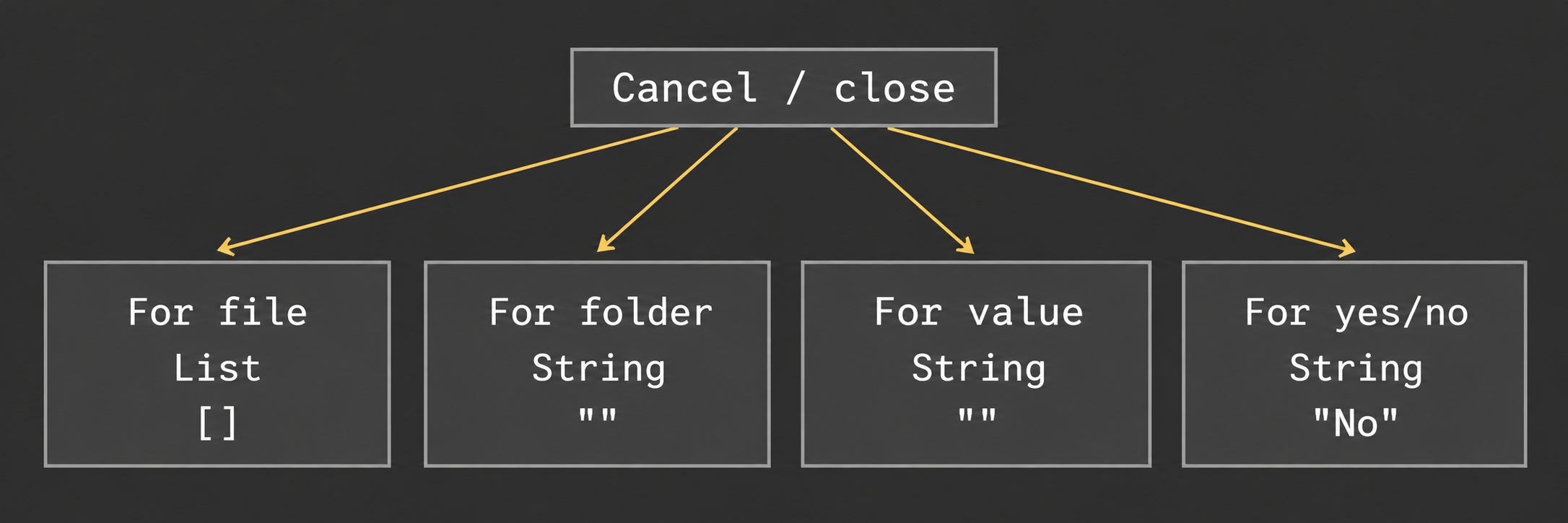
- Check for an empty answer before you use it (see the picture). Each action gives its result on cancel.
Shared fields
| ID | Editor field | Type/default | Requirement/use |
|---|---|---|---|
prompt | Prompt window caption | String; default empty | Optional window title for For file and For folder, such as Select sample. Pickers show caption and message together as their title. |
window | Prompt window caption | String; default empty | Optional window title for For value, such as Sample reference. |
prompt | Prompt window caption | String; default empty | Optional window title for For yes/no, such as Sample approval. |
prompt | Prompt message | String; default empty | Required. Instruction or question, in plain text. |
Bind result with the editor field Assign the value to a variable, to a variable of the listed type.
Actions
For file (promptForFile)
Ask for one or more existing files; use their paths in later file steps.
Inputs
Uses the shared fields: promptCaption and promptMessage.
Outputs
| ID | Type | Meaning/binding |
|---|---|---|
result | List | List of String full paths. The package does not read the files. |
Example
Create the test files samples/invoice.txt and samples/receipt.txt. Set promptCaption=Select sample, promptMessage=Choose the two sample files. Select both files and confirm. Bind result to the List variable selectedFiles.
Expected result
selectedFiles holds two String items with full file paths. Cancel or close returns an empty List. The picker accepts only existing files.
For folder (promptForFolder)
Ask a person to choose one folder for later file steps.
Inputs
Uses the shared fields: promptCaption and promptMessage.
Outputs
| ID | Type | Meaning/binding |
|---|---|---|
result | String | Full path of the selected folder. |
Example
Create samples/export. Set promptCaption=Select sample, promptMessage=Choose the export folder. Choose that folder and confirm. Bind result to the String variable exportFolder.
Expected result
$exportFolder$ is the full path of the selected folder. Cancel or close returns an empty String.
For value (promptForValue)
Ask for text; wait for OK, Cancel, Esc or close.
Inputs
Uses the shared fields: windowCaption and promptMessage.
| ID | Editor field | Type/default | Requirement/use |
|---|---|---|---|
encrypt | Mask keystroke | Boolean; default false | Optional. true shows dots instead of the typed text. The value is still plain text, not a Credential. false shows the text. |
Outputs
| ID | Type | Meaning/binding |
|---|---|---|
result | String | Exactly the typed text on OK, otherwise empty. |
Example
Set windowCaption=Sample reference, promptMessage=Enter the invoice reference, encryptKeystroke=false. Enter INV-1042 and click OK. Bind result to the String variable reference.
Expected result
$reference$ is INV-1042. Cancel, Esc or close returns an empty String. OK with no text also gives an empty String, so the result cannot tell these cases apart.
For yes/no (promptForYesNo)
Ask a yes/no question; compare the returned text or branch on it.
Inputs
Uses the shared fields: promptWindowCaption and promptMessage.
Outputs
| ID | Type | Meaning/binding |
|---|---|---|
result | String | Text Yes or No (not a Boolean). Compare against those exact words. |
Example
Set promptWindowCaption=Sample approval, promptMessage=Continue with the sample export?. Click Yes. Bind result to the String variable approval.
Expected result
$approval$ is the exact String Yes. No, Esc or closing the window returns the exact String No.