
Clio (AI) package guide
Use captured controls or AI instructions to work with desktop applications and browser pages.
Version 2.21.2. Installed versions can differ. Examples are illustrative and not tested. See Packages.
Prerequisites
- A Windows Device with Mercury, signed in, with the desktop unlocked. A locked or disconnected desktop cannot receive clicks or keys.
- If the application runs as administrator, Mercury must too. Which controls Clio can read depends on the application.
- For web pages: Janus in the Chrome or Edge profile you use (0.8.0 or later for HTML GetTable).
- For AI steps and the AI fallback: the room's AI service, set up for this Device. A step that worked before can replay without it.
- Capture each control with the editor's Capture picker. You cannot type a control name, a CSS selector or JSON instead. Use Window / Attach or open to get
$sampleWindow$for later steps. - Test on a sample form you can close, with a Description field, a Preview button, a Preview ready label, a list (Basic, Standard, Express) and a table.
- How a control is found: the step first looks for the control as captured. If that fails, it tries text, then an image, then AI. The wait fields limit only the first look. Without the AI service, the text and image tries still work. Element exists and Wait for element use only the first look, never the fallback.
- Older actions: Click, Send keys, Read, Select item, Type and Wait for element are hidden in the editor. Saved steps still run. Use Capture for new steps.
- Fields are optional unless marked Required. A default is what the step uses when the field is empty. Numbers are whole numbers.
Shared fields
These fields mean the same in each action that has them.
| Input | Editor field | Type, default | Value |
|---|---|---|---|
window | Window | Window, empty | Limits the search to a captured Window, such as $sample. Empty: the window saved with the control. Web controls need Chrome or Edge with Janus connected. |
target | Object | Ui, empty | Required, except in Send keys. The control you captured with the Capture picker. |
delay | (per action) | Number, 0 | Pause in milliseconds: between keys when typing (Capture SetText or AppendText, Type, Send keys), or once before the other Capture actions. 0: no pause. |
timeout | Timeout (ms) | Number, 15000 | How long the first look for the control lasts, in milliseconds (15000 is 15 seconds). 0 or less: look once. The fallback can take longer (see Prerequisites). |
Actions
AI steps (clioAiSteps)
Tell the AI what to do on the current screen, and how to tell when it is done. It checks that the result is new.
Inputs
| Input | Editor field | Type, default | Value |
|---|---|---|---|
instructions | Instructions | String, empty | Required. The task on the current screen, with the controls and the exact values. The AI really clicks and types. |
done | Done when | String, empty | Required. What you see when it is done, and that was not true before, such as Invoice sample in an empty field. A title or text that was already there is not enough. |
max | Maximum actions | Number, 25 | 1 to 100 tries, failed ones too. Not a time or token limit. |
allow | Allow vision | Boolean, true | true: screenshots are allowed when the control tree or page is not enough, and the automation's vision setting allows them. false: no screenshots. |
Outputs
| Output | Type | Value |
|---|---|---|
result | Dictionary | status (String), summary (String), actions (Number of tries), cache (Boolean, true on a replay) and decided (Number of actions chosen through Decisions). Bind the whole Dictionary, then read its fields. |
Example
On a sample form with an empty Description field, set instructions=Type Invoice sample in the Description field. Do not submit the form., doneWhen=The Description field contains Invoice sample., maxActions=5, allowVision=false. Bind result to $aiResult$.
Expected result
The field contains Invoice sample and status is SUCCESS. If the same action fails twice and the screen does not change, it stops with NO_PROGRESS. If it cannot finish, the step fails; it never reports a false success.
Capture (clioCapture)
Act on or read one captured control. Use Capture for new steps. A control captured only as a screen point can be clicked, but not read or changed.
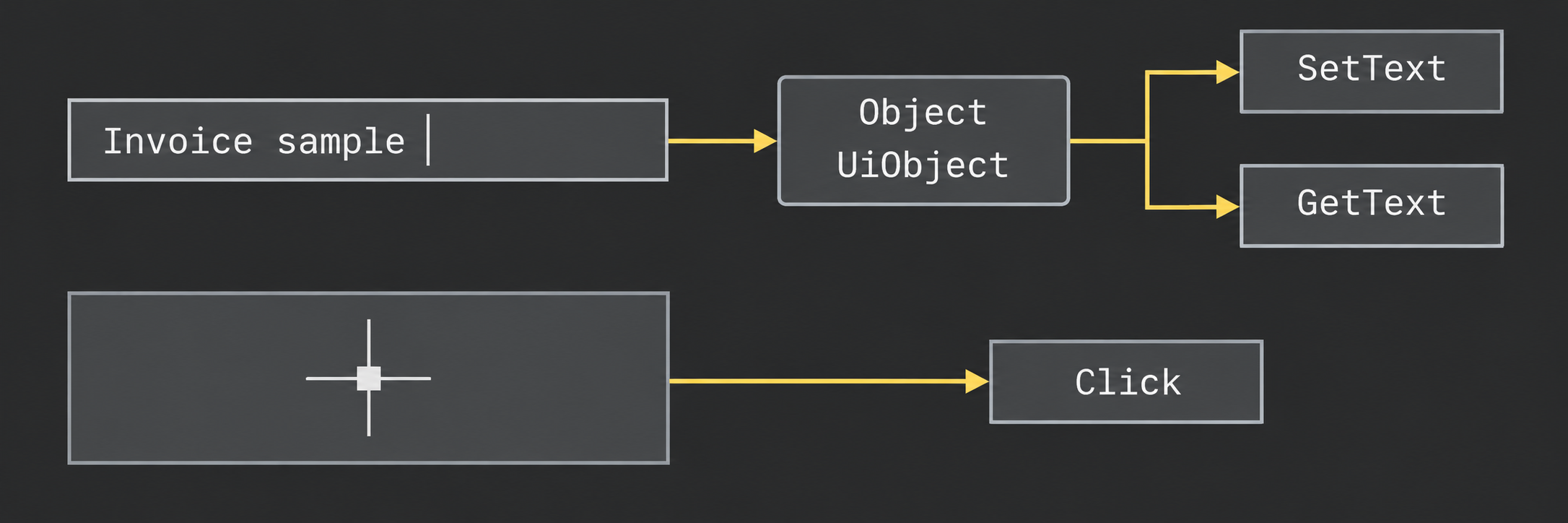
Object and choose a supported verb. A screen point supports clicks but cannot read or change control values. View full sizeThe actions in action:
- Click:
Click(the control's own action, or else a left click),LeftClick(always the mouse),RightClick,DoubleClick,DebuggerClick(web only),SetFocus. - Read:
GetText,GetProperty(the property named invalue),GetStatus(checked or selected; enabled foruiacontrols without those),GetSelectedText(an HTML select gives its value). - Write:
SetText(replace),AppendText(add),Check,Uncheck,Toggle. - Lists:
SelectItemByText,SelectItemByIndex(from 1),Expand(not needed for an HTML select). - Tables:
GetTotalRows,GetTotalColumns,GetCellText,GetTable.
What each kind of control supports:
| Kind | GetProperty names | Limits |
|---|---|---|
uia | Name, Value, Automation or ID, Class, Control. Another name reads the text. | GetCellText reads a row (from 0) and ignores the column. Use GetTable instead: in $captured, $captured is row 2, column 1. |
uiacom | Name, Value, ID or Automation, Class, Default Action. Another name reads the name. | No table or selected-text reads: they give the value or name, and counts give 0. GetStatus reads a toggle if there is one, or else turns the value or name into true or false. |
msaa | Name, Role, Default Action. Another name reads the value, then the name. | Same table limits as uiacom. Do not use GetStatus to check a box: it returns false. |
| HTML | Read by Janus. | GetCellText row and column start at 1. GetTable needs Janus 0.8.0 or later. |
Names are not case sensitive, and Class Name and Control Type also work. A name not in the list does not fail: it returns other text, so check the name.
Inputs
| Input | Editor field | Type, default | Value |
|---|---|---|---|
action | action | Ui, Click | One of the actions in the list above, supported by the control. |
value | value | Any, empty String | SetText or AppendText: text such as Invoice sample, or a whole Credential variable to type its password. GetProperty: a name from the table, such as Name. Select: Standard, or 2 for the second item with SelectItemByIndex. HTML GetCellText: row, column from 1, such as 2, 1, split by a comma, semicolon or spaces. uia GetCellText: the row from 0, then a comma. Other actions: empty. |
run | run | Boolean, false | true: act without moving the mouse or focus, if the application allows it; if not, the step fails with BACKGROUND. LeftClick, RightClick, DoubleClick and SetFocus cannot run in the background. Web controls work through Janus. |
wait | wait | Wait, Basic | Basic: look for the control for wait seconds. Advanced: wait browser for the window or page, then object for the control. |
wait | wait | Number, 15 | Basic: seconds for the first look. 0 or less: look once. |
browser | browser | Number, 15 | Advanced: seconds to wait for the captured page URL, or the captured desktop window. |
object | object | Number, 15 | Advanced: seconds for the first look, after the window or page is there. |
on | on | On, Stop | Stop: fail if the control is not found in time. Skip: if the control or its tab is not found in time, or the control is gone, go on with an empty result. Other errors still fail. |
Also uses the shared fields window, target and delayMs (delayMs).
Outputs
| Output | Type | Value |
|---|---|---|
result | Any | A String for text, property, selected text and cell reads; a Boolean for GetStatus; a Number for counts; a Table for GetTable. Other actions give an empty String. Table columns are Strings; a missing header becomes Column, a repeated one gets (2), and short rows are filled with empty Strings. |
Example
Capture the Description field of the sample form. Set window=$sampleWindow$, action=SetText, value=Invoice sample. Add a second Capture of the same field with action=GetText and bind result to $description$.
Expected result
The field contains Invoice sample, and $description$ is that text. An action that the control does not support fails. With Skip, the result is an empty String, false for GetStatus, 0 for counts, or an empty Table for GetTable.
Click (clioClick)
Click the captured control. Older action: use Capture with Click.
Inputs
| Input | Editor field | Type, default | Value |
|---|---|---|---|
button | Button | Click, Left | Left: the control's own action, or else a mouse click. Right: right click. Double: double click. A mouse click needs the control to be visible. |
Also uses the shared fields window, target and timeoutMs.
Outputs
None.
Example
Capture the Preview button. Set window=$sampleWindow$, button=Left.
Expected result
The Preview action runs once. If the control is not found, the step fails. A mouse click needs an unlocked desktop.
Send keys (clioKeys)
Focus the captured control, then send keys. Without a control, the keys go to the focused control.
Inputs
| Input | Editor field | Type, default | Value |
|---|---|---|---|
keys | Keystrokes | String, empty | Required. Letters type as text. [ENTER]: Enter. [CTRL DOWN]a[CTRL UP]: Ctrl+A. Release every key you hold down. |
Also uses the shared fields window, target (optional here; window alone does not focus a control), delayMs (Delay between keystrokes (ms)) and timeoutMs.
Outputs
None.
Example
Capture an empty sample text area. Set window=$sampleWindow$, keys=Invoice sample[ENTER]Ready, delayMs=10.
Expected result
The text area shows Invoice sample on line 1 and Ready on line 2. An unknown [...] key fails before the focus changes. A locked desktop refuses keys.
Read (clioRead)
Read the text, value or name of a captured control. Older action: use Capture to read.
Inputs
| Input | Editor field | Type, default | Value |
|---|---|---|---|
what | Read | Read, Text | Text: the text you see (on the desktop, the value if there is no text). Value: the value only. Name: the name a screen reader uses. |
Also uses the shared fields window, target and timeoutMs.
Outputs
| Output | Type | Value |
|---|---|---|
result | String | The text read. An empty result does not prove that the control is missing. |
Example
Capture the Description field, which contains Invoice sample. Set window=$sampleWindow$, what=Text. Bind result to $description$.
Expected result
$description$ contains Invoice sample. If the control is not found, the step fails. The text or value of a desktop password field is an empty String.
Select item (clioSelect)
Select an item in a captured list, combo box or HTML select.
Inputs
| Input | Editor field | Type, default | Value |
|---|---|---|---|
item | Item | String, empty | Required. by=: the item text, such as Standard. by=: a number from 0; 1 is the second item. (Capture SelectItemByIndex starts at 1.) |
by | Select by | Select, Text | Text: on the desktop, the exact text (any case), or else text that contains it. Index: the position from 0. |
Also uses the shared fields window, target and timeoutMs.
Outputs
None.
Example
Capture the sample list. Set window=$sampleWindow$, item=1, by=Index.
Expected result
Standard is selected. An index that is not valid or out of range fails. If a desktop list needs the keyboard, the step can fail when the selection does not change, also when the item was already selected.
Type (clioType)
Replace or add text in a captured control. Older action: use Capture with SetText or AppendText.
Inputs
| Input | Editor field | Type, default | Value |
|---|---|---|---|
text | Text | Any, empty String | Required. Text such as Invoice sample, typed as is (no [...] keys), or a whole Credential such as $sample to type its password. Use a test credential. |
clear | Clear first | Boolean, false | true: replace the content. false: add to it. With a delay and false, if the control is lost while typing, the text is not typed again. |
Also uses the shared fields window, target, delayMs (Delay between keystrokes (ms)) and timeoutMs.
Outputs
None.
Example
Capture the Description field. Set window=$sampleWindow$, text=Invoice sample, clear=true.
Expected result
The field contains only Invoice sample. A control that is missing or cannot be edited fails the step. If the step must type with the keyboard, it needs focus and an unlocked desktop.
Wait for element (clioWaitFor)
Wait until a captured control appears or goes away. It does not use the AI fallback.
Inputs
| Input | Editor field | Type, default | Value |
|---|---|---|---|
state | Wait until | Target, Exists | Exists: wait until the control is found. Not: wait until it is not found. |
Also uses the shared fields window, target and timeoutMs.
Outputs
None. The step changes nothing in the application.
Example
Capture the Preview ready label, then hide it and make the sample show it after one second. Set window=$sampleWindow$, timeoutMs=5000, state=Exists.
Expected result
The step ends when the label appears. If it does not appear in time, the step fails with TIMEOUT.
Conditions
Element exists (clioExists)
Check if the captured control is there within the wait. It does not use the AI fallback.
Inputs
Uses the shared fields window, target and timeoutMs.
Outputs
None. The condition is true if the control is found in time, or else false.
Example
Capture the Preview ready label while it shows. Set window=$sampleWindow$, timeoutMs=2000. Check once while it shows and once after the sample hides it.
Expected result
True while it shows, false when it is not found within 2 seconds. A web control is not true only because its page is open. If the capture is broken or another error occurs, the condition fails instead of returning false.